1.
In Okta, go to Applications > Browse App Catalog. Search for Symbe and select 'Add this integration'.
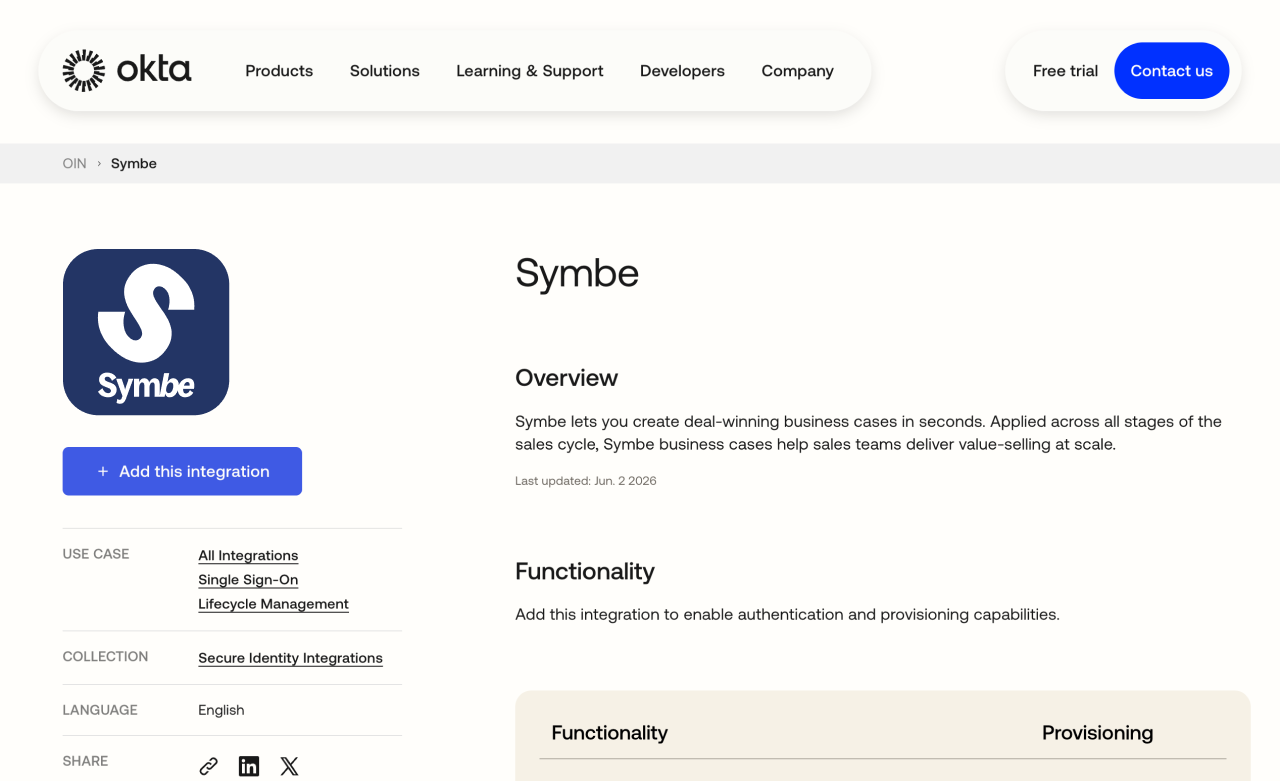

The Symbe Okta integration allows you to configure Symbe to use Okta SSO for user authentication
You must have admin permissions in Symbe and admin access to an Okta tenant to complete these steps. The only supported feature is SP-initiated SSO (Single Sign-On).
In Okta, go to Applications > Browse App Catalog. Search for Symbe and select 'Add this integration'.
Assign the users or groups that should be able to log into Symbe.

Go to the Okta Symbe App, select the Sign On tab and copy your Okta Domain (eg. acme.okta.com), client ID and client secret. You will need this information to connect Symbe to Okta in the next step.
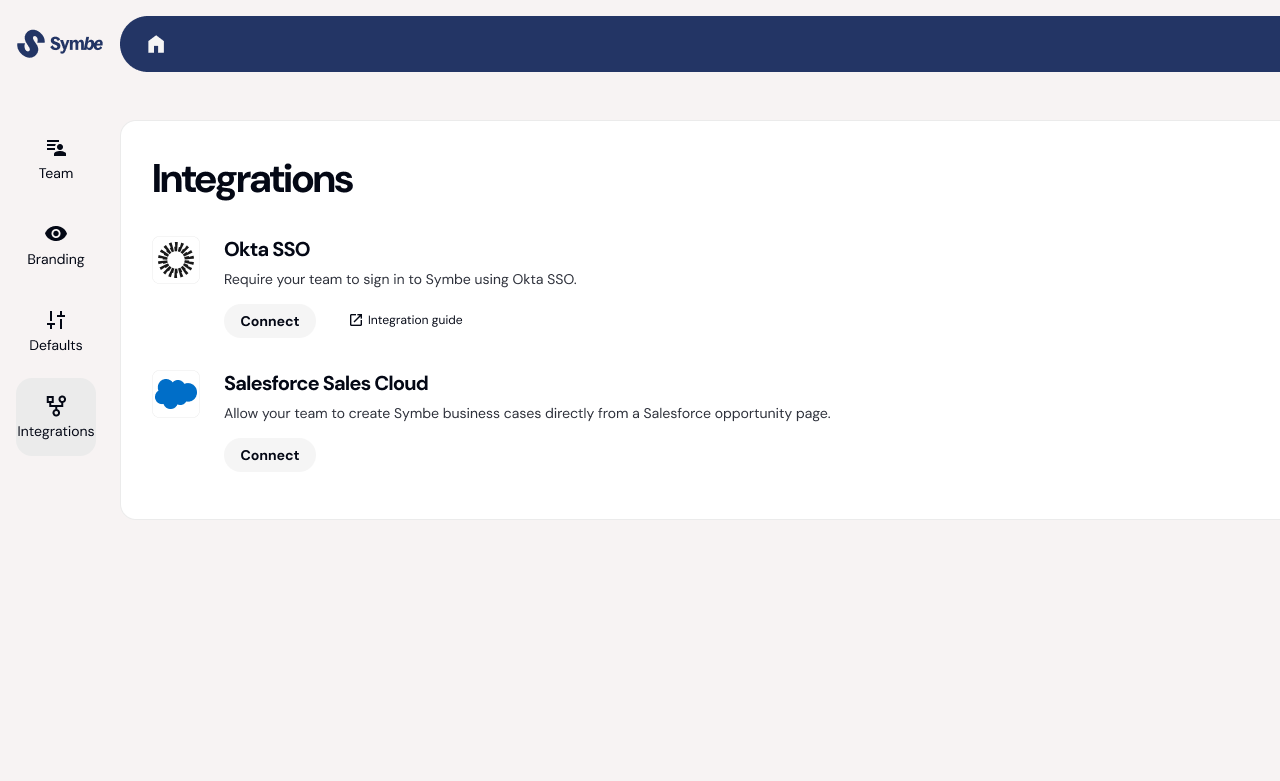
In Symbe, go to Settings > Integrations, scroll to the Okta SSO integration and select 'Connect'.
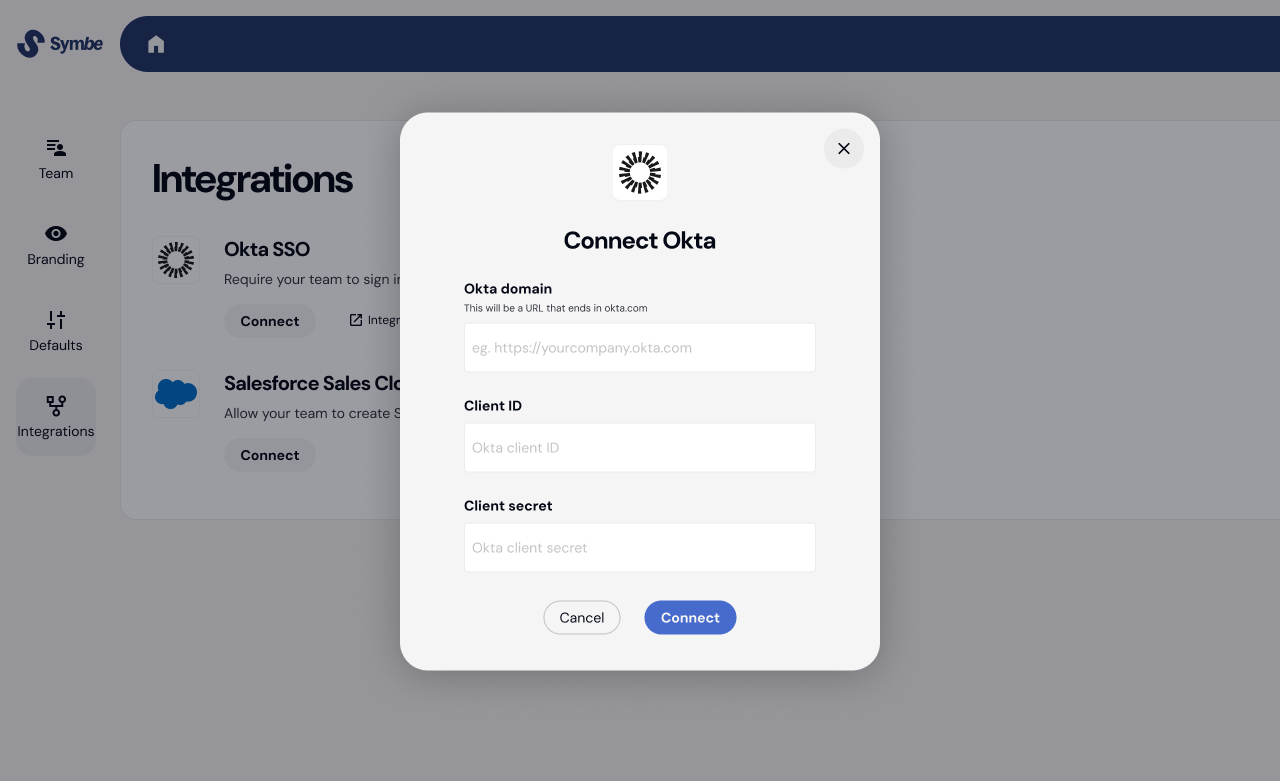
Enter the Okta domain, client ID and client secret from step 3. Click 'Connect' to save your credentials and enable Okta SSO.
Your team will now need to use their Okta accounts to sign in to Symbe. If they previously used a password then this will no longer work.

Go to app.symbe.co/sign-in


If presented with ‘Sign in with Okta’ continue to step 4, otherwise enter your email and click continue

Follow the link sent to your email and then click ‘Sign in with Okta’

Complete sign in with Okta and you will then be taken back to Symbe where you’ll be signed in